.avif)


Configuring Apache with PHP7 FPM on MacOS Mojave using HomeBrew
These installation steps is a basic guide on how to setup Apache Server with PHP7.2 FPM on MacOS Mojave.
These installation steps is a basic guide on how to setup Apache Server with PHP7.2 FPM on MacOS Mojave.
Before we start with installation process, let us first —
a. Remove built in Apache and PHP
Remove build in Apache Server for MAC OSX by issuing the following commands:
sudo apachectl stop
sudo launchctl unload -w /System/Library/LaunchDaemons/org.apache.httpd.plist
#Assuming you have PHP 7.2 preinstalled
brew unlink php72
b. Purging Previous Configuration Files (Apache & PHP)
If HomeBrew is already installed and you would like to purge all previous Apache and PHP Configurations:
sudo rm -R /usr/local/etc/httpd
sudo rm -R /usr/local/etc/php
Now, lets install necessary dependencies before beginning the process:
c. Install Xcode CLI tools (if not already installed)
xcode-select --install
d. Install HomeBrew (if not already installed)
Install HomeBrew by issuing the following command:
/usr/bin/ruby -e "$(curl -fsSL https://raw.githubusercontent.com/Homebrew/install/master/install)"
Run HomeBrew Doctor to check if everything is in oder:
brew doctor
#Your system is ready to brew.
Phew, now that everything else is sorted, lets get to work —
1. Installing Apache using HomeBrew
Lets install and start the Apache Server using Homebrew by issuing the following commands —
brew install httpd24 --with-privileged-ports --with-http
brew services start http
Running Apache on HomeBrew
On HomeBrew Default Ports
By default, HomeBrew Apache v2.4.35 is configured to run on port 8080 while SSL port is configured to run on 8443. If you would like to start Apache then simply issue the command:
apachectl start
If you require Apache to run as a background service(start automatically on restart, requires user log-in) then run the following command:
brew services start httpd24
Now, open up your browser and browse to http://127.0.0.1:8080. You should be able to see "It works!" on the browser!
Run Apache on Standard Port 80
If the apache server is running, then stop the server using the following command:
apachectl stop
In order to configure Apache to run on port 80 then simply open up /usr/local/etc/httpd/httpd.conf and make the following change:
#Find the line with
Listen 8080

#and change it to
Listen 80
In order to run Apache on port 80 or any other port ≤1024, you would need to run apache with sudo privileges. Hence, start the apache server using the following command:
sudo apachectl start
Again, if you require Apache to run as a background service(start automatically on restart) then run the following command:
sudo brew services start httpd24
Now, open up your browser and browse to http://l27.0.0.1. You should be able to see "It works!" on the browser!
2. Install latest PHP 7.2 with FPM
Brew is configured to install php with fpm automatically when issuing the following command:
brew install php72
Once complete, confirm that the version of PHP installed is 7.2
php -v
PHP 7.2.10 (cli) (built: Sep 14 2018 07:05:22) ( NTS )
Copyright (c) 1997-2018 The PHP Group
Zend Engine v3.2.0, Copyright (c) 1998-2018 Zend Technologies
    with Zend OPcache v7.2.10, Copyright (c) 1999-2018, by Zend Technologies
In order to start php72 FPM (FastCGI Process Manager), please issue the following command:
sudo brew services start php
3. Configuring Apache to work with PHP FPM
In order to configure apache to work with php fpm please open the /usr/local/etc/httpd/httpd.conf file again and uncomment the following lines to enable the listed php modules:
LoadModule proxy_module libexec/mod_proxy.so
LoadModule proxy_fcgi_module libexec/mod_proxy_fcgi.so
LoadModule rewrite_module libexec/mod_rewrite.so
Again on httpd.conf, make the following changes to make Apache load index.php by default
#
# DirectoryIndex: sets the file that Apache will serve if a directory
# is requested.
#
<IfModule dir_module>
    DirectoryIndex index.php index.html index.htm
</IfModule>
Add the following configurations to the /usr/local/etc/httpd/httpd.conf file just under the directory directive:
<VirtualHost *:*>
   ProxyPassMatch "^/(.*\.php(/.*)?)$" "fcgi://127.0.0.1:9000/usr/local/var/www/$1"
</VirtualHost>
<FilesMatch \.php$>
    # 2.4.10+ can proxy to unix socket
    # SetHandler "proxy:unix:/var/run/php5-fpm.sock|fcgi://localhost/"
    # Else we can just use a tcp socket:
    SetHandler "proxy:fcgi://127.0.0.1:9000"
</FilesMatch>
Now, to make the configurations take effect, please restart the Apache Server by issuing the following command:
sudo brew services restart httpd24
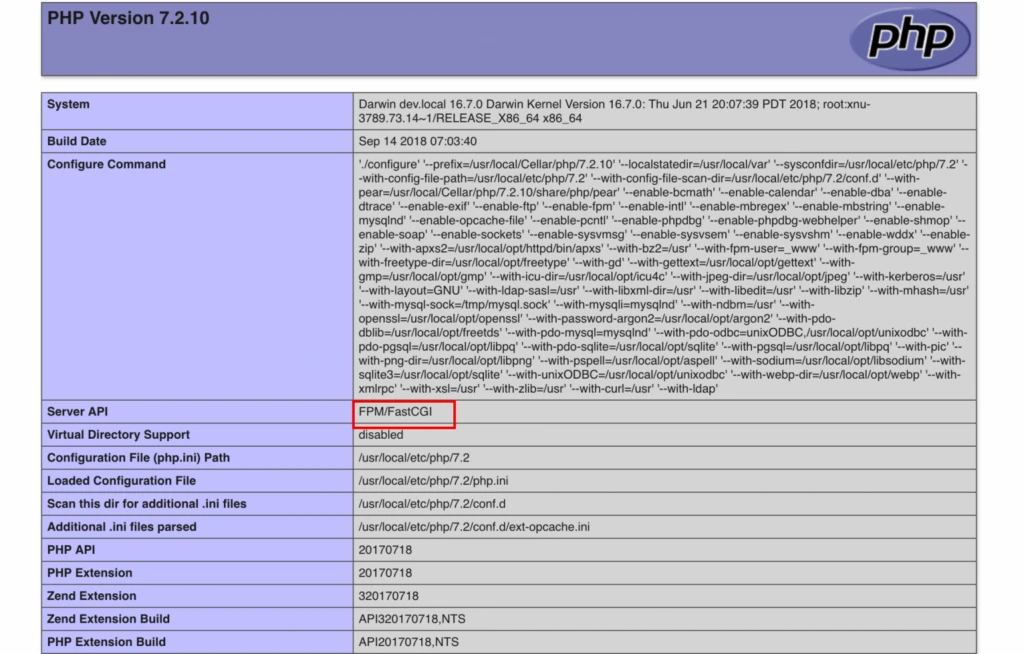
Now, create a new php file named test.php under the server directory at /usr/local/var/www/ and add the following content to the file:
<?php echo phpinfo(); ?>
Now, browse to http://127.0.0.1/test.php to check if your Server is able to handle PHP files.
I hope this article has been to some aid to you. Do leave your feedback! Thanks!
Running infrastructure like this in production? ARITS does Kubernetes and DevOps platform engineering so your team can ship without babysitting servers.